
IPTV Player for Roku: Easy Hot Player Setup in 4 Steps

Quick answer: Roku only adds apps from its own Streaming Store, so many IPTV players you may know from Android or Fire TV won’t install on it. One IPTV player for Roku that is in the store is Hot Player (formerly Hot IPTV). Add it, note the MAC ID on its home screen, activate it, then refresh the app and your channels load. Prefer not to use an app on the Roku itself? You can mirror your phone or computer to the TV, or plug a streaming stick into a free HDMI port.
Disclosure: we sell IPTV subscriptions and Hot Player activations, so the prices on this page are our own, checked on 1 November 2026. Prices are in US dollars and can change; the pricing page always shows the current ones.
Table of Contents
Can you watch IPTV on Roku?
Yes, but a Roku works differently from most streaming devices. A Roku stick, box or Roku TV runs Roku’s own system and only adds apps from Roku’s Streaming Store. You can’t install Android apps on it or load an app file from a website, the way some people do on a Fire TV Stick.
That matters for IPTV, because an IPTV service doesn’t come with its own TV app. It gives you a login, such as a username, password and server URL or an M3U link, and a player app plays the channels. The channels come from the subscription; the app only shows them. So the real question is which IPTV player for Roku you can actually add from the store.
Players that many people use on Android TV and Fire TV, such as TiviMate, are Android apps, so they won’t run on a Roku. Hot Player is different: its developer lists Roku’s store among its official downloads on hotplayer.app, next to the Samsung, LG and Android stores, and you can see the Hot Player listing on Roku’s website. New to all this? What is IPTV explains the basics.
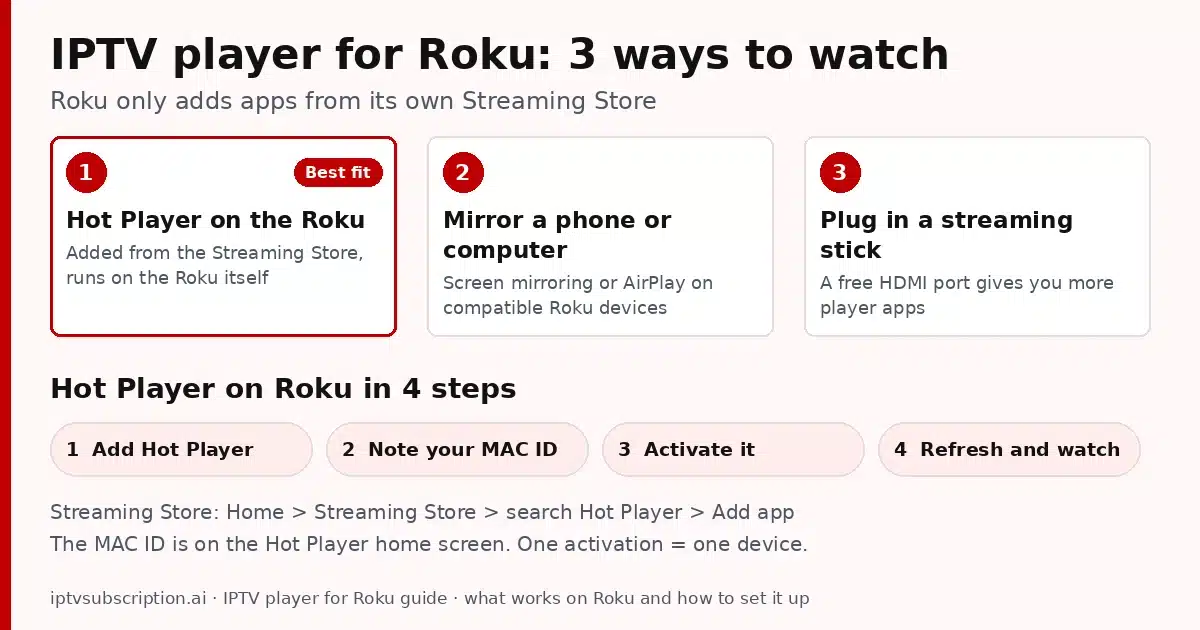
IPTV player for Roku: set up Hot Player in 4 steps
Hot Player is the IPTV player for Roku that we activate and support. The steps are the same as on a Samsung or LG TV (see our Hot Player Samsung and LG guide), and you only need the Roku remote and a phone or computer for the payment.
Step 1: Add Hot Player from the Streaming Store
Press Home on your Roku remote and open Streaming Store (some older menus call it Streaming Channels). Search for Hot Player, select it and choose Add app. Roku puts new apps at the bottom of your Home screen list, so scroll down to find it.
You can also add it from a phone or computer: open the Hot Player listing on Roku’s website, sign in with your Roku account and add it there. It is then sent to the Roku devices on that account. If it doesn’t show up, run a software update on the Roku (Settings > System > System update) to fetch it sooner.
Step 2: Write down your MAC ID
Open Hot Player. The home screen shows your device’s MAC ID, labelled Your MAC on most devices. It identifies this Roku for the activation, so write it down or take a photo of the screen. The app is free to use for its first 30 days, so you can open it and look around before you activate it.

Step 3: Activate Hot Player on your Roku
- Open our Hot Player activation form.
- Enter the MAC ID from your Roku, your IPTV username (or the one you would like if you are new) and your email.
- Pay $20 once on the secure checkout at gotoiptv.com. The lifetime activation for this Roku and 1 month of IPTV are added, usually within minutes after payment is confirmed.
Step 4: Refresh and start watching
On the Hot Player home screen, press Refresh, or close the app and open it again. Your playlist appears with live TV, movies and series, and you move through it with the Roku remote. Something not loading? Our IPTV not working guide covers the usual fixes step by step.
What an IPTV player for Roku costs with us
The Hot Player app is free to use for 30 days. After that, every device needs a one-time activation. With us it costs $20 once: a lifetime activation for one device, with 1 month of IPTV included. It is a single payment, so nothing renews by itself.
When the included month ends, you keep watching with a plan. All plans have the same channels and features; only the length changes:
- 1 Month + 1 Free: $14 for 2 months
- 3 Months: $30
- 6 Months + 2 Free: $50 for 8 months
- 12 Months + 2 Free: $70 for 14 months (about $5 a month)
Each activation covers one device. A second Roku or TV needs its own activation, and watching on two screens at the same time needs an extra connection, so ask us on WhatsApp before you buy. For the full picture, read how much IPTV costs. Later on, check my IPTV account shows the days you have left, and extend your IPTV subscription adds time without losing any.
2 other ways to watch IPTV on Roku
If you don’t want an app on the Roku itself, two other ways work with the same IPTV login. Here is how they compare with an IPTV player for Roku:
| Hot Player on the Roku | Mirroring | Streaming stick | |
|---|---|---|---|
| What you need | A Roku that can add apps from the Streaming Store | An Android phone or Windows computer, or an Apple device with AirPlay, plus a compatible Roku | A free HDMI port and a streaming stick |
| What you use | The Roku remote | Your phone or computer | The stick’s remote |
| Cost with us | $20 once per device, with 1 month of IPTV | A plan from $14 (plus any player app fee) | A plan from $14, plus the stick |
| Best for | Everyday watching on a Roku | Now and then | The widest choice of player apps |
Mirror your phone or computer to the Roku
Many Roku devices can show the screen of an Android phone or a Windows computer (screen mirroring), and compatible models also accept AirPlay from an iPhone, iPad or Mac. Roku’s screen mirroring guide lists the steps and which devices support it. On a Samsung phone, for example, you pull down the status bar, tap Smart View and pick your Roku; on Windows 11, you press Win + K.
Then play IPTV in a player app on the phone or computer, such as IPTV Smarters Pro (see our IPTV Smarters Pro guide). It works for an evening, but the phone has to stay on and nearby, notifications can show up on the TV, and the picture depends on two wireless links instead of one.
Plug a streaming stick into a free HDMI port
If your TV has a free HDMI port, a streaming stick next to your Roku gives you far more choice. On a Fire TV Stick or an Android TV device you can pick from many players, including Hot Player and TiviMate. See best IPTV for Firestick, Hot Player on Firestick and our best IPTV player guide to choose one.
Another player for the stick is GoTo Player. It has no Roku app, but on a Fire TV Stick or an Android TV device you install it with Downloader and the code 1129312 (it doesn’t install on the newest Vega OS sticks). It is free for 14 days, then $7 a year or $20 for life on one device. GoTo Player activations are sold on gotoiptv.com, where our checkout runs.
Tips for smooth IPTV on Roku
Whichever IPTV player for Roku you use, these habits help the picture stay steady:
- Use a cable if you can. Some Roku models and many Roku TVs have an Ethernet port, and a cable is steadier than Wi-Fi. Otherwise, connect the Roku to your router’s 5 GHz Wi-Fi network.
- Keep the Roku up to date. Go to Settings > System > System update and choose Check now.
- Restart now and then. If the app gets slow, restart the Roku from its Settings menu or unplug it for a few seconds, then open Hot Player again.
- Pick HD on a slow connection. 4K needs much more speed. Our stable IPTV guide explains what keeps a stream steady and how to test it.
- Keep your MAC ID. Save the photo from step 2. If you ever need help, send it to us with a photo of the screen.
Start watching IPTV on your Roku
Ready? Add Hot Player from the Streaming Store, write down the MAC ID and activate it with our form: $20 once, lifetime for that Roku, with 1 month of IPTV included. After payment is confirmed on the secure checkout at gotoiptv.com, the activation is usually done within minutes, and you can pay with Cash App, Apple Pay, Google Pay, PayPal, Chime or crypto (Interac e-Transfer in Canada).
Not sure your Roku is the right screen for you, or want a channel checked first? Message us on WhatsApp before you buy.
More guides on choosing, setting up and fixing IPTV are in our IPTV service guide.
IPTV player for Roku: FAQ
What is the best IPTV player for Roku?
Roku only adds apps from its own Streaming Store, so there are fewer players than on Android. Hot Player is an IPTV player for Roku that is listed there, runs on the Roku itself and works with the Roku remote. We can’t test every app in the store, so this guide covers the one we activate and support.
Is Hot Player free on Roku?
For the first 30 days. After that, each device needs a one-time activation. With us it costs $20 once, lifetime for one device, with 1 month of IPTV included.
Can I install TiviMate or IPTV Smarters Pro on Roku?
TiviMate is an Android app, and a Roku can’t run Android apps, so it won’t install. For any other player, search the Streaming Store on your Roku: only apps listed there can be added. If yours isn’t listed, use Hot Player, mirror the app from your phone, or plug in a streaming stick.
Does one Hot Player activation work on two Rokus?
No. Each activation is linked to one device’s MAC ID. A second Roku, TV or phone needs its own activation.
Can I mirror IPTV from my phone to my Roku?
Yes, on Roku devices that support it. Android phones and Windows computers use screen mirroring, and iPhones, iPads and Macs use AirPlay with compatible Roku models. The phone has to stay on and nearby, so it suits occasional watching.
What if I can’t find Hot Player on my Roku?
Update your Roku first (Settings > System > System update) and search the Streaming Store again. You can also add it from the Hot Player listing on Roku’s website with your Roku account. Still missing? Message us on WhatsApp, or use a streaming stick instead.