
Blog
IPTV Not Working? 6 Quick Fixes

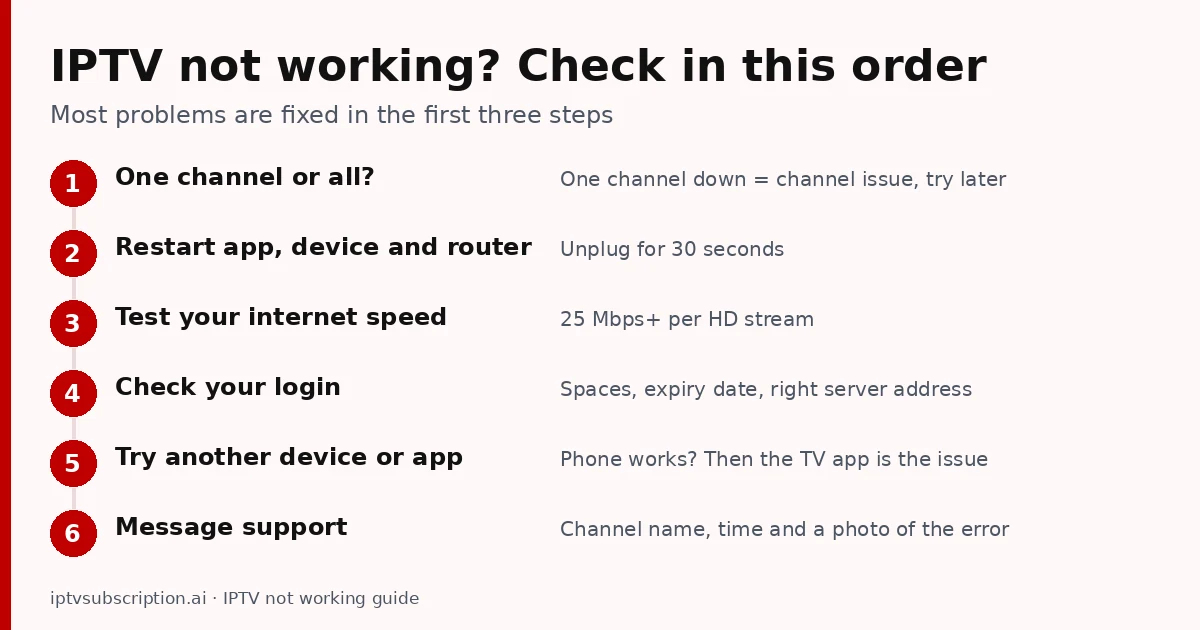
Quick answer: when IPTV is not working, first check whether one channel or all channels fail. One channel down is usually a temporary channel problem. If everything fails, restart the app, the device and your router, run a speed test, then check your login details. Most problems are fixed in these first steps; if not, send support the channel name, the time and a photo of the error.
Table of Contents
IPTV not working? Check in this order
- One channel or all? Open 3 or 4 other channels. If only one fails, the problem is that channel’s source; it usually comes back within minutes or hours.
- Restart everything. Close the app completely, restart the TV or stick, and unplug your router for 30 seconds.
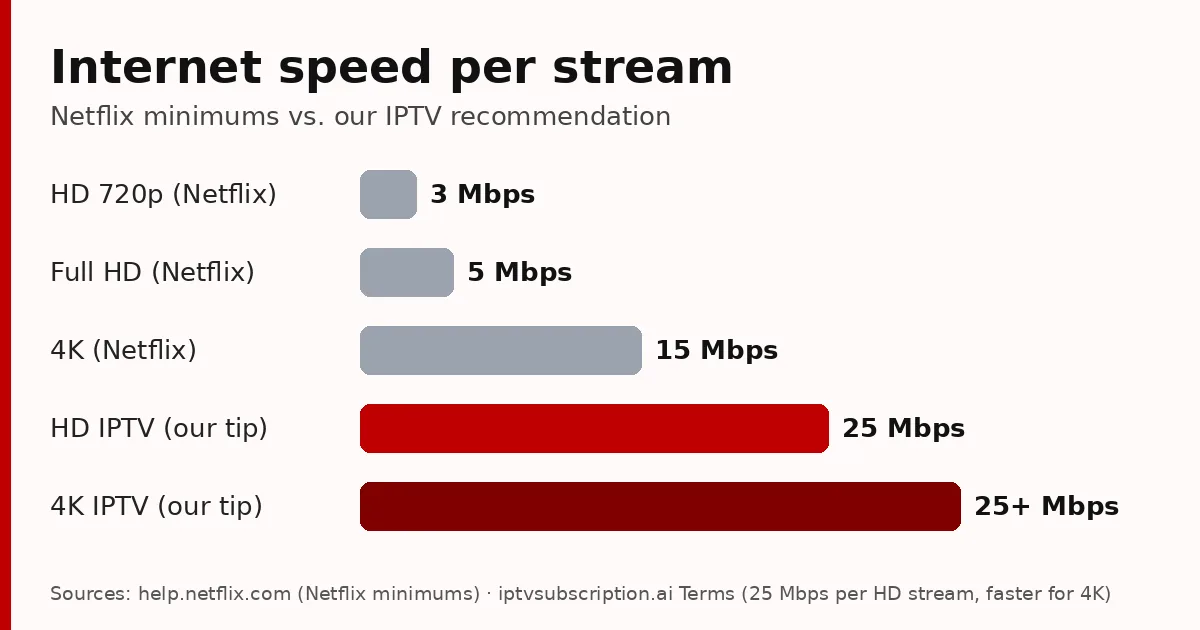
- Test your internet speed on the same device (or a phone on the same Wi-Fi). We recommend at least 25 Mbps per HD stream.
- Check your login. Look for extra spaces, the right server address and your plan’s end date.
- Try another device or app. If it works on your phone but not on the TV, the TV app or its settings are the problem.
- Message support with the channel name, the time and a photo of the error message.
Is IPTV down right now?

People often search “is IPTV down” when their screen goes black. IPTV is not one network: each provider runs its own servers, so there is no single switch that takes every IPTV service down at once. To find out whether your IPTV is down or the problem is at home:
- Try a second device on the same Wi-Fi. If both fail, check a normal website or YouTube: if those are slow too, the problem is your internet.
- Try mobile data on your phone with the same login. If it works there, your home connection or router is the cause.
- Ask your provider. A good provider tells you quickly when a server has a problem. Our customers can message us on WhatsApp at +1 917 924 8236.
Why is IPTV not working today? 7 common causes
1. Busy Wi-Fi in the evening
Evenings and big matches are peak hours for everyone: your neighbours, your internet provider and IPTV servers. Use 5 GHz Wi-Fi or a network cable, and pause other downloads while you watch.
2. The app needs an update or a cache clear
Old app versions can stop loading channels after a server change. Update the app, or clear its cache in the device’s app settings (on Fire TV: Settings → Applications → Manage installed applications).
3. Your subscription has ended
An expired plan often looks like “login failed” or an empty channel list. Check the end date in your account or email; renewals take a few minutes on our renewal page.
4. Wrong or changed login details
Retype the server address, username and password from your email. A missing “http://”, an extra space or a capital letter is enough to block the login.
5. Too many connections
Most plans allow a set number of screens at the same time. If someone else in the house is watching on another device, one stream may stop.
6. Your internet provider blocks or slows streaming
Some internet providers slow down streaming traffic at busy times. If IPTV only fails on your home internet and works on mobile data, a VPN can help. Test with and without it, and read our VPN for IPTV page.
7. A channel or server problem
Sometimes the cause is on the provider’s side: a channel source drops, or a server is overloaded. That is when fast support matters most.
Why is my IPTV box not working?
If your IPTV box or Fire TV Stick shows nothing at all, check the basics first: the HDMI cable and the TV input, the power adapter (use the original one; weak USB power from the TV causes restarts), and the box’s own network settings. A box that is very hot or very full of apps also slows down: restart it and remove apps you don’t use.
On a Fire TV Stick, our Firestick checklist has more tips for smooth playback.
Fix buffering and freezing
- Connect the TV or stick with a network cable, or move the router closer.
- Lower the quality (choose the HD version of a channel instead of 4K).
- Close other apps and downloads on the same network.
- Restart the router once a week.
- Still freezing at the same hours every day? Run the 7 checks for a stable IPTV server.
When to contact support
If you tried the steps above and IPTV is still not working, contact your provider. Send these details to get a fix faster:
- the device and app you use;
- the channel name and the time it failed;
- a photo of the error message;
- your speed test result.
Our customers can reach us on WhatsApp or through the contact page. New setup? Start with the IPTV setup guide. More background: what IPTV is and how it works.
Test your connection with Speedtest on the same device you watch on.
IPTV not working: FAQ
Why is my IPTV not working today?
The most common causes are busy Wi-Fi at peak hours, an app that needs an update, an expired plan, wrong login details or a temporary channel or server problem. Restart the app, device and router, then run a speed test.
Is IPTV down right now?
Each provider runs its own servers, so there is no single IPTV outage. Test on a second device and on mobile data, then ask your provider.
Why does only one channel not work?
That channel’s source has a temporary problem. Try it again later and tell support the channel name and time.
Why does IPTV freeze in the evening?
Evenings are peak hours for your internet and for IPTV servers. A network cable, 5 GHz Wi-Fi and fewer downloads help a lot.
Why is my IPTV box not working?
Check the HDMI input, the original power adapter and the box’s network settings, then restart it and remove apps you don’t use.